Notion AI adds a genuinely useful layer of automation to one of the most popular workspace tools around. If you’re just getting started, here’s a practical, step-by-step walkthrough.
Step 1: Enable Notion AI
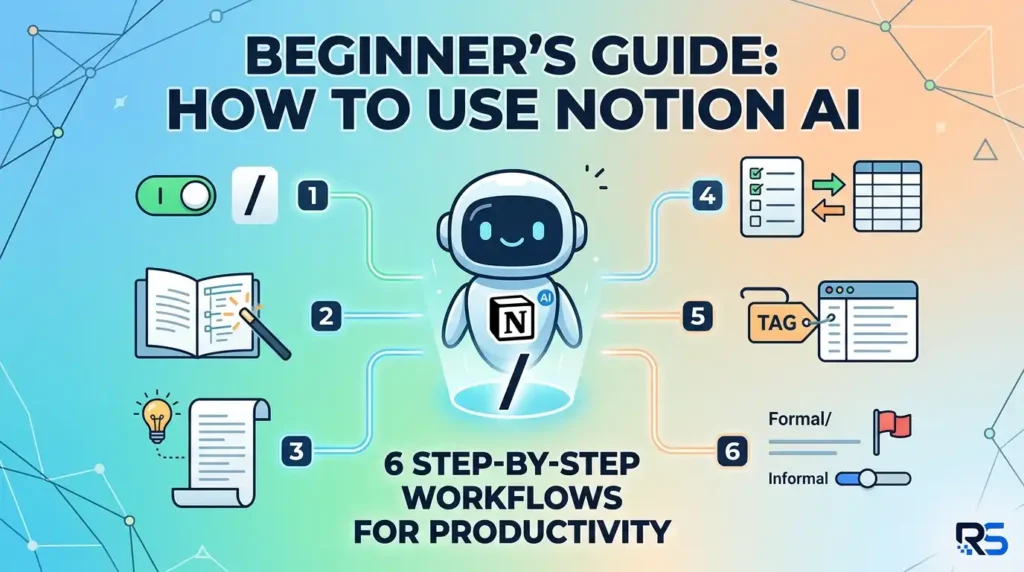
Inside any Notion page, type a forward slash to open the block menu and select an AI option, or highlight existing text and choose “Ask AI” from the floating toolbar. If your workspace hasn’t added the AI add-on yet, you’ll be prompted to enable it from your workspace settings.
Step 2: Generate Content From a Blank Page
On an empty page, type a prompt describing what you need — a meeting agenda, a project brief, a blog outline — and Notion AI will draft it directly in the page. Edit the draft manually or ask the AI to revise specific sections by highlighting them and describing the change.
Step 3: Summarize Long Notes
Open any long page, click the AI icon at the bottom of the document, and select “Summarize.” This is especially useful after long meetings or when reviewing research notes before a deadline.
Step 4: Extract Action Items
After a meeting note, use the “Find action items” AI command. Notion will scan the text and generate a checklist of tasks, which you can convert directly into a linked database for tracking.
Step 5: Auto-Fill Database Properties
Inside a Notion database, add an AI-powered property (such as a summary, category tag, or sentiment field) and Notion AI will populate it automatically for every row based on the page content — extremely useful for organizing large content libraries.
Step 6: Translate and Adjust Tone
Highlight any block of text and use the AI toolbar to translate it into another language or adjust the tone — more formal, more casual, shorter, or more detailed — without leaving the page.
Tips for Getting Better Results
- Be specific in your prompts — vague requests produce vague drafts
- Use AI for a first draft, then edit rather than expecting a final version
- Combine AI-generated summaries with manually linked databases for the best organization
Once these basics feel natural, Notion AI becomes less of a novelty and more of a genuine daily productivity layer across your notes, docs, and project trackers.
